
Installation Guides
Linux Update Utility Installation and Usage Guide
Instructions for installing and using Linux Update Utility(10/24/26) *Edited(10/25/26)
Hello;
This guide will take you step by step on installing and using Linux Update Utility your computer.
Prerequisites and good-to-knows:
- A Linux system with somewhat recent packages (Ultra-reliable server-desktop systems may have considerably aged packages)
- You WILL use the terminal (No, it’s not scary)
- Linux Update Utility was created and is maintained by 1 person, me :)
- This app contains no processes which can directly harm your Linux system. This being said, this app simply automates your existing update process. If the maintainers of your repositories ship an update which negatively affects your system, this app does not protect you nor does it pose any additional risk. Do not fear updates or this app by any means, but I feel obligated to make this known.
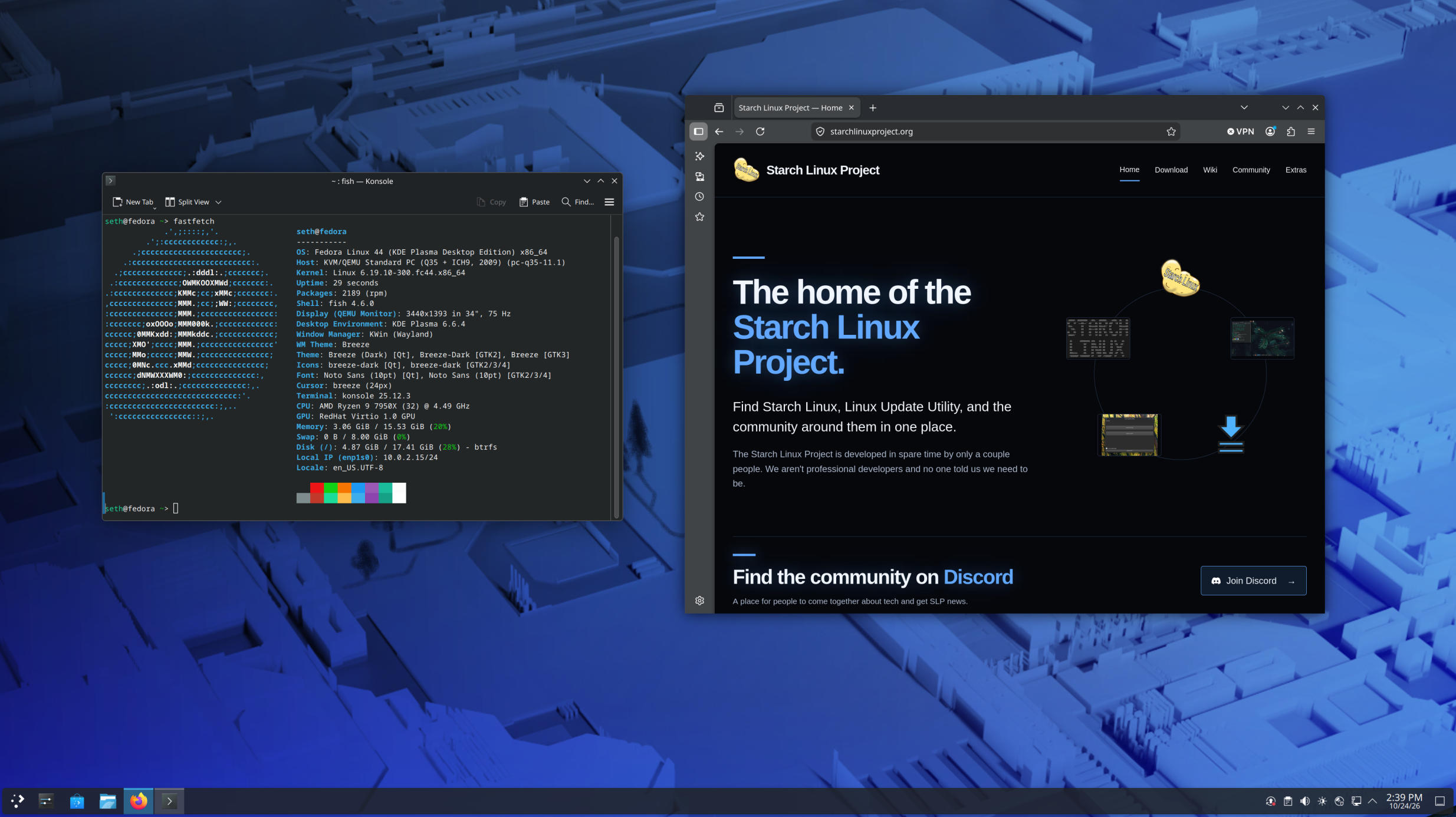
Once you’ve got these requirements out of the way, installation will fly by. Explanation for commands and practices will be provided when needed. If you need help, the Discord is always available. Tundra and I are quite active and can help you get going very quickly. This example is running Fedora KDE, but steps are the same across all systems.
- Getting the installer:
Navigate to the download page and download the LUU Setup Utility;
++starchlinuxproject.org/download++
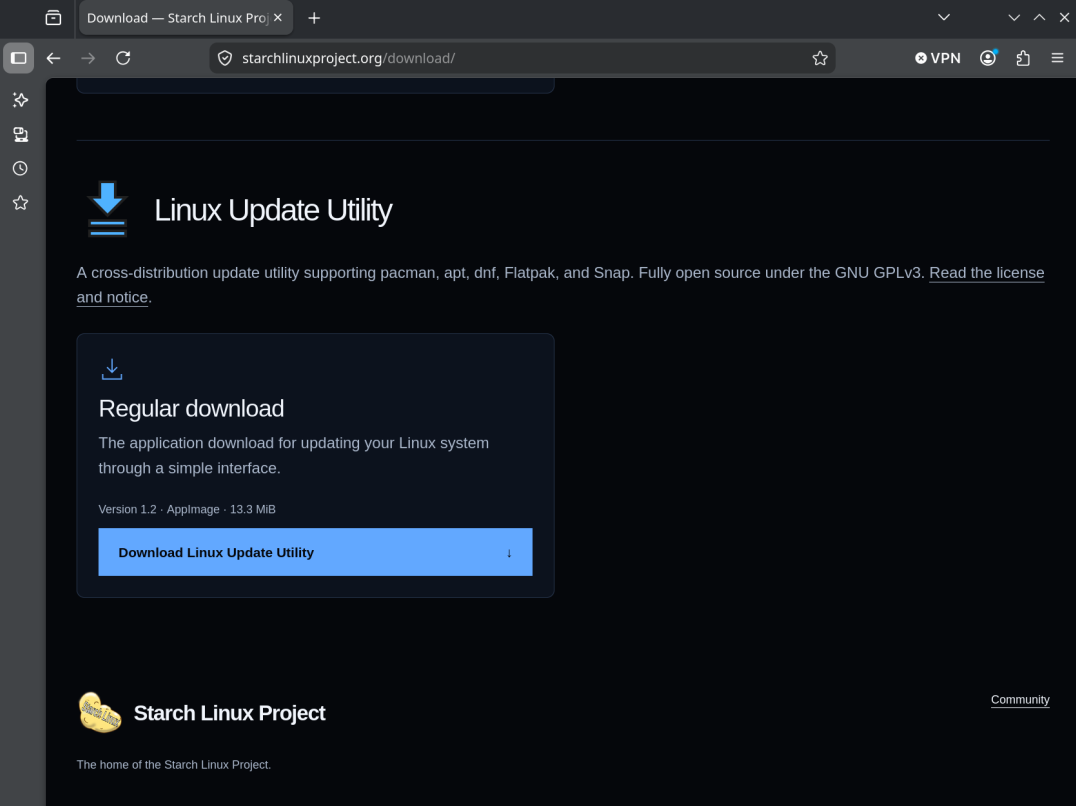
Instructions from here may have to be interpreted slightly for new releases, however only the file name will change.
- Terminal work, if you're inexperienced you should take this slow:
Now open your terminal, your web browser will no longer be need;
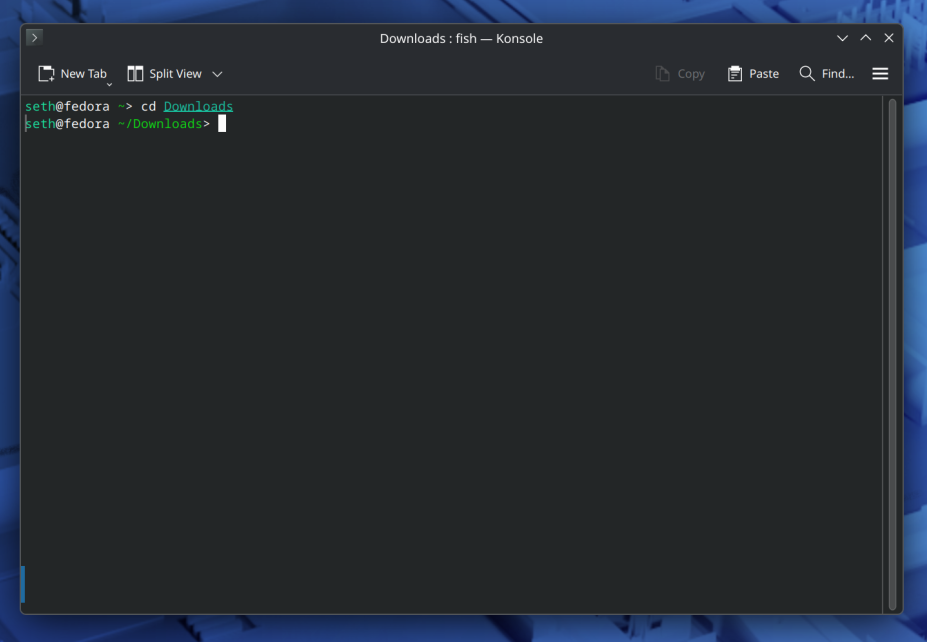
Use the cd command to enter your downloads directory;
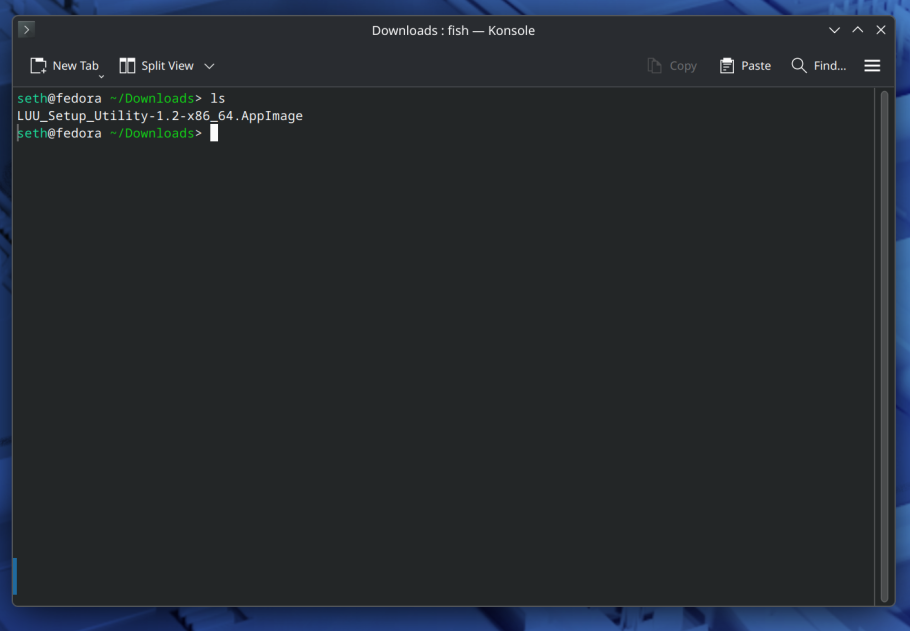
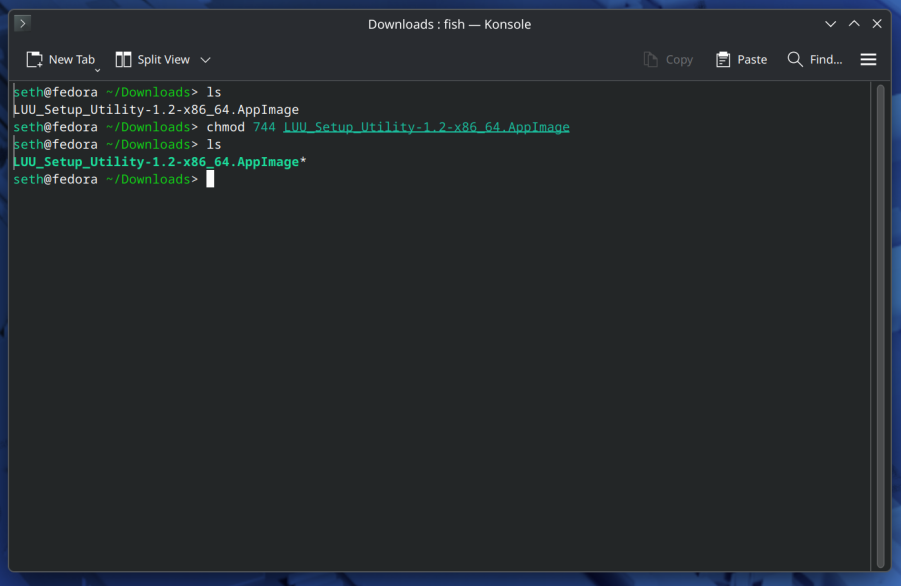
Do a quick ls to get the exact name of the file;
Make sure to either leave this on screen or remember it. You will need it for the next few steps.
Now we make the file executable with chmod;
Use chmod 744 to make the file executable. The tool chmod is a standard Linux tool, 744 makes the file only executable by the owner, which is you.
The command is chmod 744 followed by the exact name of the file.
Then repeat the ls, notice that it appears differently compared to before.
To run it, simply type ./ followed by the exact file name;
The terminal may give warnings or errors, if the app opens and installs properly then these messages can be ignored. If a problem occurs, the terminal output may be helpful for troubleshooting.
I will remind you that the Discord is always available, and it's not unlikely that you'd receive assistance from me directly :)
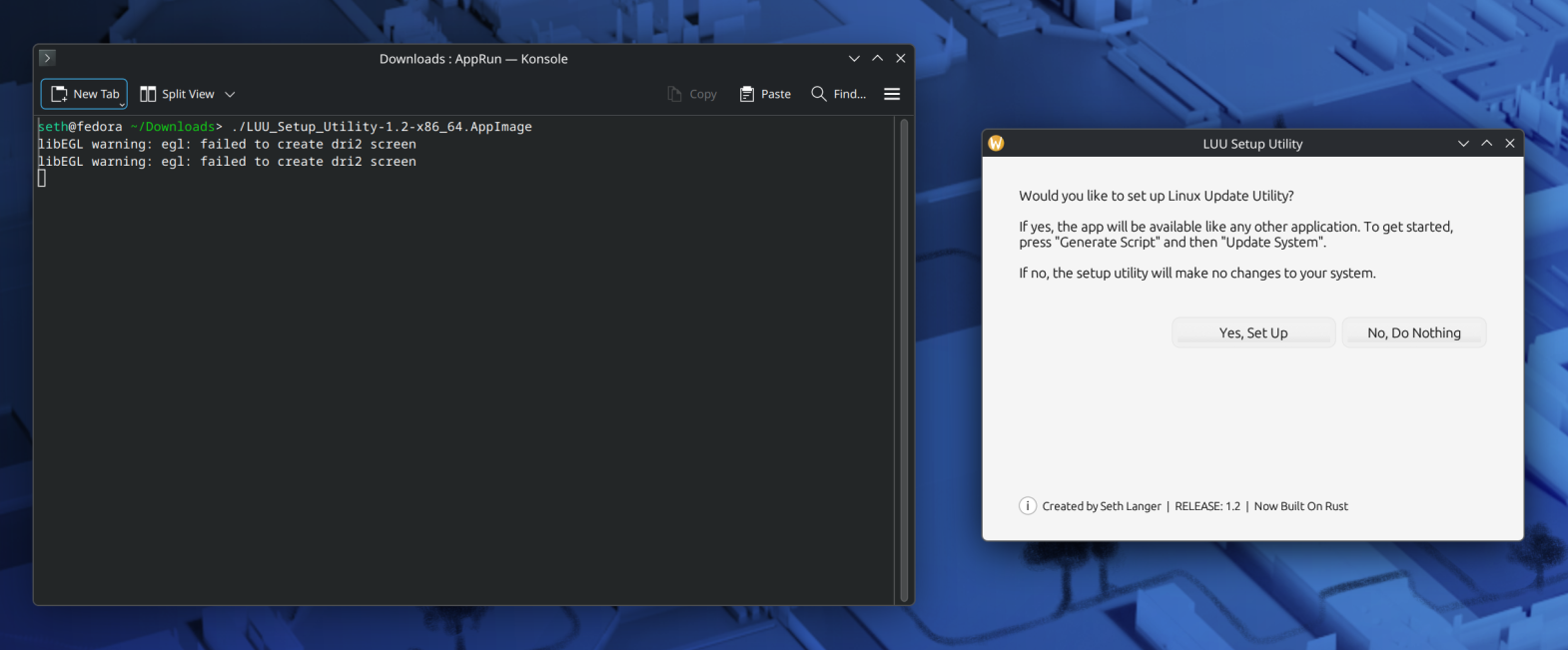
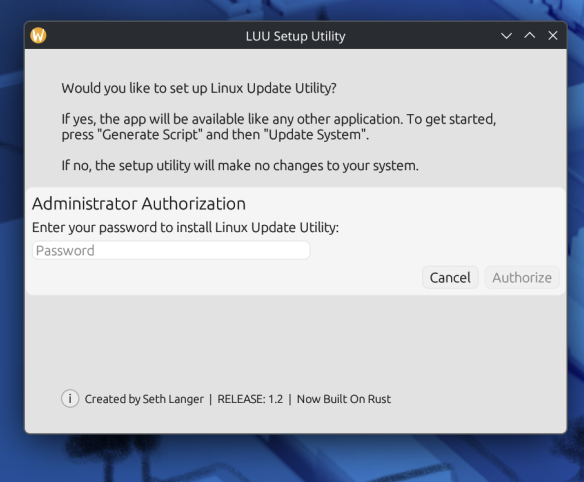
To install, click “Yes, Set Up” and enter your PIN once prompted;
This installs the app like any other app on your computer, simply search for it with your desktop environment’s existing utility and click on it to open it.
- If everything up until this point has been successful, you are no longer going to need the terminal:
You have successfully installed Linux Update Utility!
The rest of this guide will consist of a tour and usage instructions;
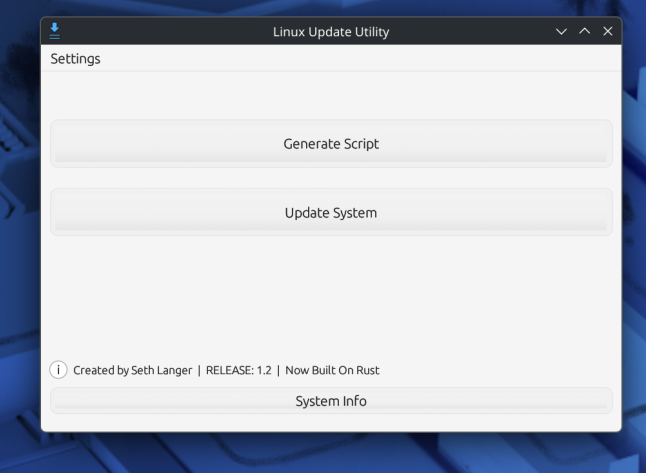
Absorb the layout for a little bit, don’t be afraid to push buttons. This app contains no processes which can break your Linux system directly.
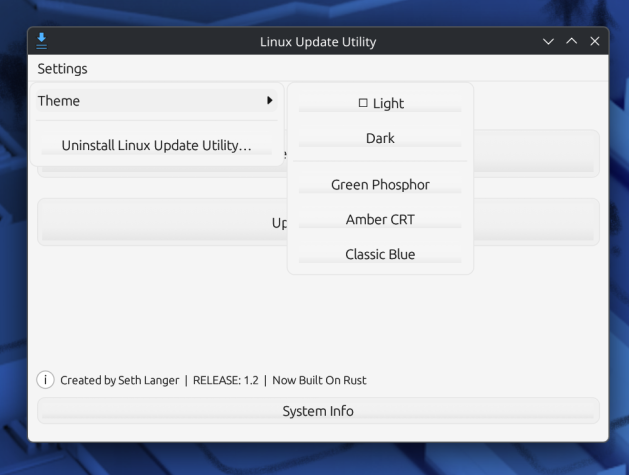
The settings menu contains a themes menu and an option to uninstall the app;
Uninstalling the app removes all of its files permanently and cannot be undone.
To resume usage after an uninstall, reinstall the app.
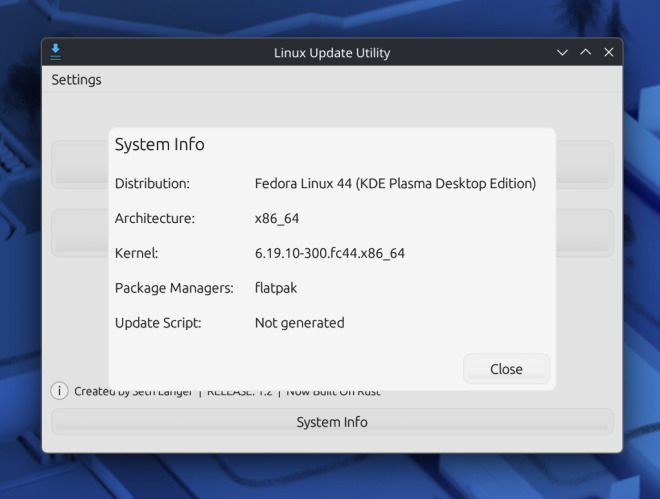
The System Info tab contains some information about the app and your computer;
- At the top is your Linux distribution
- Next is your CPU architecture
- Next is your kernel
- Next is your package managers
- Next is the status of the update script
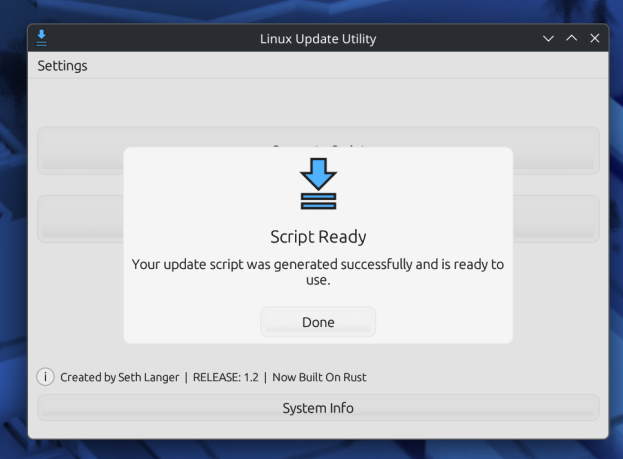
Now you should generate an update script for your system;
This detects what package managers your system uses and creates a script for the program to run in order to update packages with them.
This app operates the terminal for you, doing many tasks most Linux users already do.
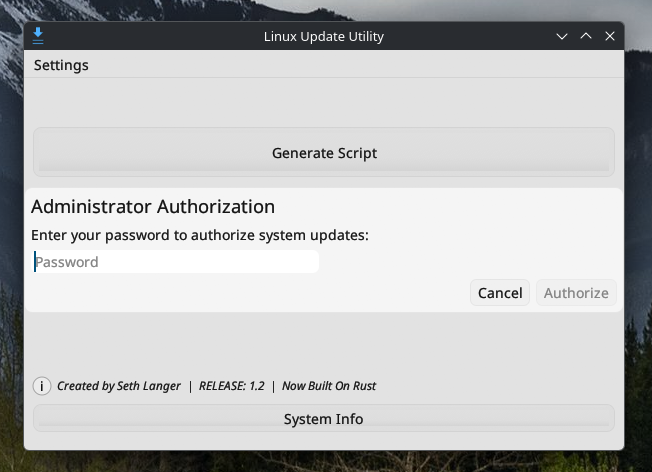
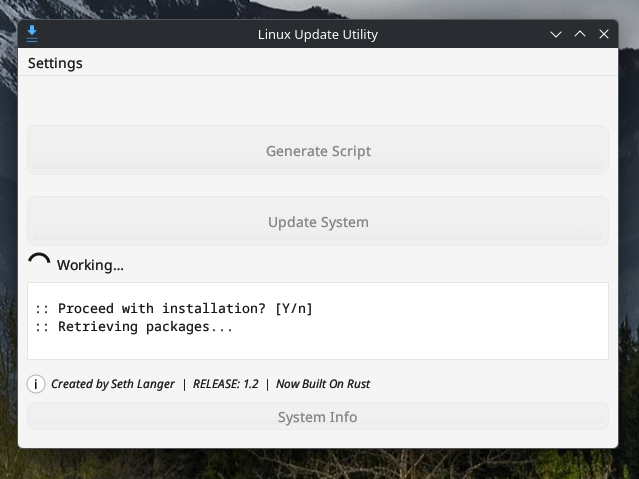
To update your system, click Update System;
This runs the script we generated in the previous step. It uses your PIN to authorize the commands for you, your PIN is not permanently stored by the app nor does it ever leave your computer.
Your system is now being updated! During updates you’ll see a loading wheel and the terminal moving along, requiring no input. The terminal may sit still for a long time, that behavior is completely normal and doesn’t necessarily mean something has gone wrong.
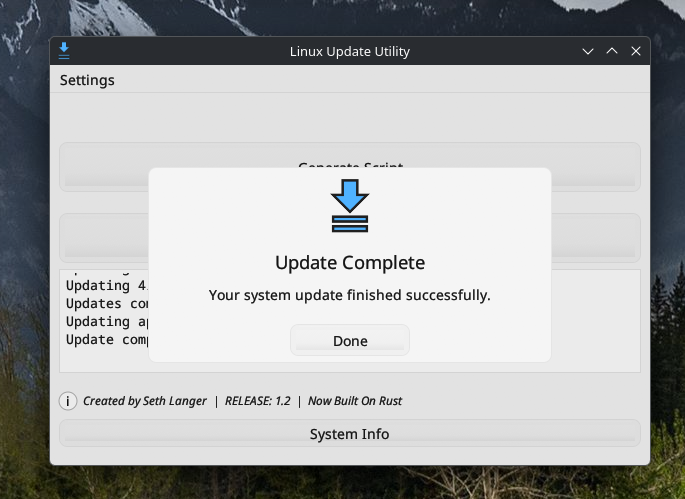
Once met with the Update Complete message, it means your system is now up to date. To keep your system up to date, periodically open the app and click Update System.
You are now equipped with a tool to easily keep your system up-to-date! Thank you for using my app, and always feel free to join the Discord and/or support me.
Enjoy,
SethDoesTech